This guide is for anyone buying Shadowrocket for the first time or verifying an app they already purchased. Check the App Store product page, compare the full developer name and official icon, and confirm id932747118 in the link before paying. The name, search ranking, price, or connection results alone cannot verify an app’s identity.
1. Start with the three identity checks
Shadowrocket is the product’s official name. Search terms can match titles, descriptions, and other content, so seeing familiar wording in search results does not mean you have opened the right product page. Verify the app on its product page, not in the search results list.
The full developer name is Shadow Launch Technology Limited, and the app ID is 932747118. Compare the complete name, not just the word “Shadow,” and don’t mistake a developer name mentioned in the description for the seller information shown by the App Store. The product name tells you what the app is called; the developer field and app ID help confirm which app it is.
Shadowrocket is a closed-source commercial app for Apple platforms, primarily used on iPhone and iPad. Check the App Store product page for compatibility with Mac, Apple TV, and Apple Vision, as well as system requirements and Universal Purchase availability. Device compatibility tells you whether the app can run; it does not replace the three identity checks.
2. Verify the app before paying on the App Store
These steps use the App Store on iPhone as an example. Button labels may vary with the interface language; terms such as Search, Information, and Seller identify the relevant sections. Open the product page first, then check its identity details and purchase button. Don’t decide based on search results alone.
-
Search for the app
Open the App Store → Search and enter Shadowrocket. Use the results to find the product page; don’t identify the app by its position or how prominently it appears.
-
Open the product page
Tap the product name or icon to open its page. Confirm the full name is Shadowrocket, then check the developer information shown on the page.
-
Check the developer
Check the developer details on the product page and in the Information section. If you view the Seller field, it should show Shadow Launch Technology Limited. Don’t rely on the same name appearing only in the product description.
-
Check the share link
Use Share on the product page and copy the link somewhere you can read it. Confirm the domain is apps.apple.com and the app ID in the path is id932747118.
-
Confirm before paying
Compare the official icon below, then return to the verified product page and follow the App Store prompts to confirm the price, purchase, and install the app. The current price shown in the store is the one that applies.
If you can’t find one of the details, complete the other checks first, then use this site’s App Store verification page to open the product page and check again. Don’t treat a “similar-looking icon” as a substitute for missing information. Mentions of proxies, rules, or network tools in an app description do not verify the developer’s identity.
3. Where to find the official icon and app ID
The image below shows the official Shadowrocket icon for comparison. Look for the white background, the blue-and-purple outlined rocket, and the overall shape; don’t rely only on the presence of a rocket. The icon is one helpful identifier, not proof of identity by itself. Check it alongside the developer name and app ID.
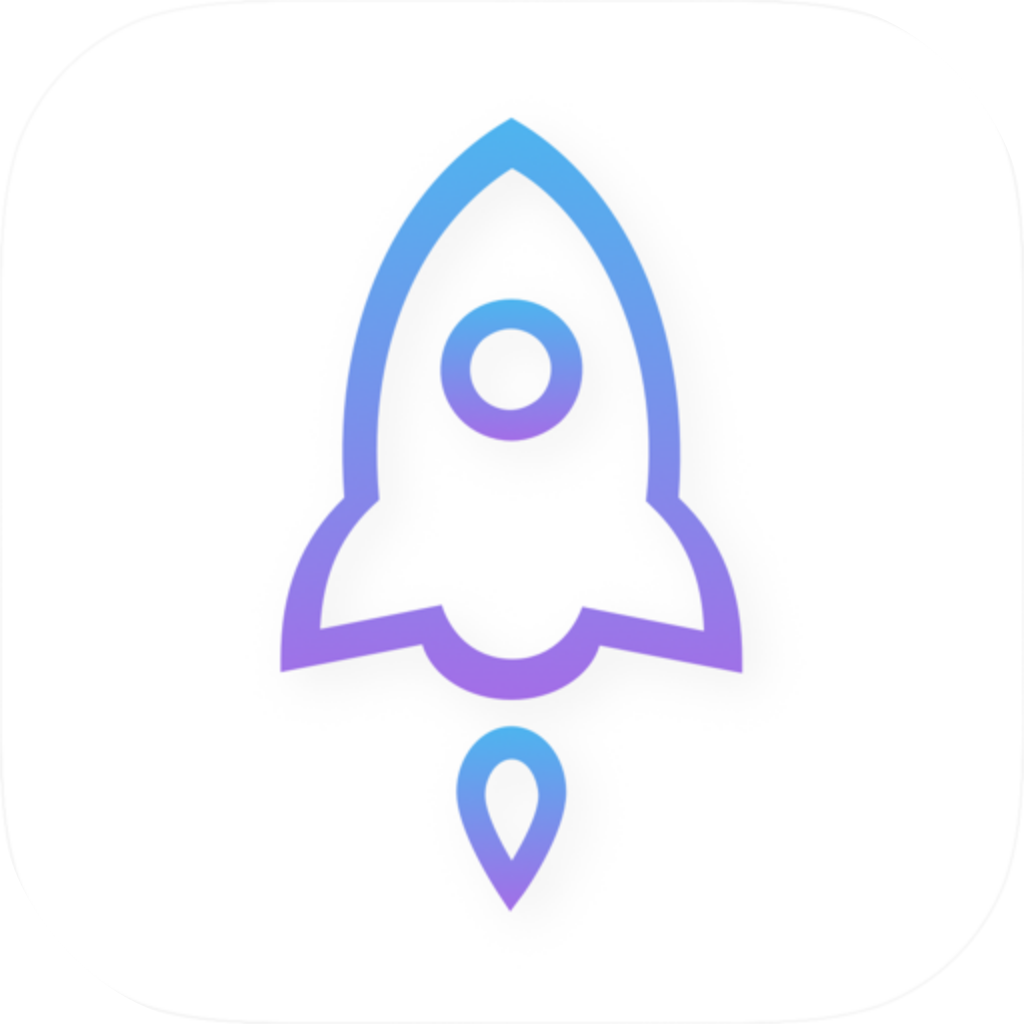
The official product page address is shown below. In the link, /us/ is the storefront region path, shadowrocket is the name path, and the final id932747118 is the app identifier to check. Neither the region path nor the name can replace the app ID.
https://apps.apple.com/us/app/shadowrocket/id932747118| Link segment | What it means and what to check |
|---|---|
https://apps.apple.com | Verify the actual domain; seeing this text on the page is not enough. |
/us/app/ | Storefront region and product path; neither uniquely identifies the app. |
shadowrocket | Product name path; continue checking the numeric ID at the end. |
id932747118 | The complete number after id must be 932747118, with no missing or different digits. |
Bottom line: Stop if anything doesn’t match
If the developer name, icon, or app ID doesn’t match, stop the purchase and reopen the product page from the App Store verification page. Don’t let a search ranking or similar name override the mismatch.
If you receive a link in a message or other text, check the actual URL, not just the clickable text. If all you can see is “Shadowrocket,” expand or copy the link to inspect its destination. You don’t need to enter your subscription link, connection password, or configuration file on any page before verifying the app.
4. Check the one-time purchase, purchase history, and app identity separately
Shadowrocket is a one-time purchase, with payment handled by the App Store. Prices vary by storefront region and currency and may change, so no fixed price can verify whether an app is genuine. Likewise, a button’s current state reflects whether the app is available to buy or install; it does not prove the app’s identity on its own.
- First purchase: Complete all three identity checks, then confirm the app name and price on the purchase confirmation screen.
- Redownloading: Sign in with the Apple Account used for the original purchase, find Shadowrocket in the App Store’s purchased apps, and open its product page to verify the app.
- Purchase history is unclear: Check your App Store account’s purchase history and confirm which app the transaction was for. Don’t infer what you bought from the name shown on your Home Screen alone.
- App not shown in the store: Check your current storefront region, device compatibility, and account status. Refer to the App Store product page for system requirements and Universal Purchase availability.
If you discover after purchasing that the app identity doesn’t match, keep the details from the App Store product page and purchase history, then use the purchase support option in your App Store account. Don’t import private configuration into an app whose identity hasn’t been verified, especially a subscription URL containing access credentials.
5. After installation: routing settings don’t verify app identity
After verifying and installing the app, Home, Config, and Settings provide access to connection, configuration, and settings controls. But interface labels and feature descriptions can be copied, so seeing these menus does not replace App Store verification. Whether a connection succeeds also depends on your configuration and network conditions; it does not prove the app’s identity.
The following compares only Shadowrocket’s Global Routing options to clarify the difference between app identity and how requests are handled. Config is for rule-based routing. Before selecting it, confirm that the intended configuration is enabled. This recommendation applies only when you already have rules set up.
Config
RecommendedThe active configuration’s rules determine how requests are handled. Rules can specify DIRECT, a proxy policy, or another defined policy; not all requests follow the same route.
Use when: You have a verified configuration and want requests handled according to its rules.
Proxy
Sends requests handled by the app through the selected proxy policy, which can help temporarily rule out the effect of standard rule-based routing. It does not guarantee that a particular destination will be reachable.
Use when: You’ve verified the app and want to troubleshoot rules and connection paths temporarily.
Direct
Sets requests handled by the app to connect directly. Changing this option changes how requests are handled, not the app’s identity on the App Store.
Use when: You need to compare results with direct access on your current network.
For example, DOMAIN-SUFFIX matches a specified domain and its subdomains, while FINAL handles requests that don’t match any preceding rule. These keywords describe traffic decisions; importing a configuration that contains them does not replace checking the app ID.
Settings → On Demand controls when connections are established based on specified conditions; it is not an identity verification switch. Check app identity on the App Store product page. Once verified, troubleshoot connection issues by checking the configuration, selected policy, and network conditions separately.
6. Checklist before purchase and after switching devices
Use the same identity checks whether buying for the first time or reinstalling on a new device. For a first purchase, confirm the payment details; when reinstalling, also check your purchase history and account. Verify the app before importing a configuration to reduce the risk of sharing private connection details with the wrong app.
- Product name: Shadowrocket. Don’t stop checking just because you see a familiar nickname.
- Developer: Compare the full name, Shadow Launch Technology Limited.
- Official icon: Compare it with the official icon shown here; don’t rely only on the rocket outline.
- App ID: The share link should point to
apps.apple.com, with the app identifierid932747118. - Purchase: The app is a one-time purchase. Check the App Store product page for compatibility, system requirements, and Universal Purchase availability.
- Next steps: After verifying the app, follow the getting started guide to import your own configuration. Don’t share URLs containing access credentials.
Proceed with the purchase or restore access only after all three details match. If even one is missing, return to the product page and complete the check rather than guessing from the price, icon, or connection results. Next, revisit the App Store verification page or follow the steps for making your first connection.